
How to Install NetMirror on iPhone & iPad
The complete iOS walkthrough — install DODO Webview from the App Store, paste the NetMirror URL, tap through the once-daily support ad, and start streaming. Real iPhone screenshots at every step. Works on iOS 12+ iPhone, iPad and iPod touch. No jailbreak required.
Overview
Installing NetMirror on iPhone or iPad is a four-step process that takes about three minutes the first time. You\'ll install the free DODO Webview app from the App Store, paste the current NetMirror URL into it, tap through a single 20-second support ad on first launch each day, and stream from a 500K+ title library across 50+ OTT platforms.
Unlike Android, iOS doesn\'t allow direct APK installs. Apple\'s sandbox restricts third-party app sideloading entirely. The good news: DODO Webview is a genuine, Apple-reviewed App Store app that opens any URL as a full-screen web app. No jailbreak, no profile installation, no developer-mode certificate. Just a free download from the App Store like any other app.
Every step below uses real iPhone screenshots captured during a fresh install on iOS 17. We\'ve covered the six most common install issues at the end — including the URL rotation, the daily ad screen, and AirPlay setup — with verified fixes.
Why iOS is different
Android lets you install an APK directly. iOS doesn\'t — Apple\'s sandbox blocks installs from any source outside the App Store, and Apple\'s App Store policies prevent content aggregators like NetMirror from being distributed natively. This is the same restriction that affects competitors like Pikashow, ThopTV and similar apps.
The workaround: use a webview wrapper from the App Store. DODO Webview is a generic app that opens any URL as a full-screen, app-like experience — exactly how the iOS Mail, Settings and Books apps display web content internally. Apple specifically permits this — webview apps have been a category in the App Store for over a decade.
DODO Webview is a genuine App Store app that passed Apple\'s review process. It doesn\'t install profiles, doesn\'t require developer mode, and runs entirely inside iOS\'s standard sandbox. The 1.3-star rating exists because users incorrectly review it expecting it to contain content itself — it\'s actually just a webview wrapper.
Before you start
You\'ll need four things. Most users already have all four — this section is just to confirm.
Apple device
iPhone, iPad or iPod touch running iOS 12 or newer
Safari browser
Pre-installed on every Apple device
Internet
Wi-Fi or mobile data — DODO download is tiny (~5 MB)
Apple ID
Needed only to install DODO Webview from the App Store
Step-by-step install
4 steps · ~3 minFour steps in order. Every step shows the actual iPhone screen you\'ll see, exactly what to tap, and a short "what if" tip if anything looks off.
Install DODO Webview from the App Store
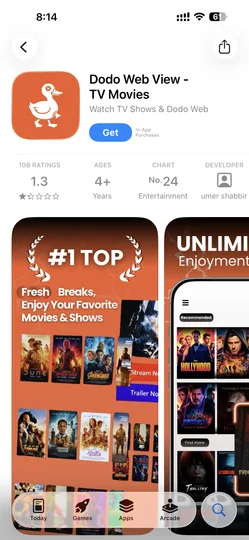
Open the App Store on your iPhone or iPad and search for "DODO Webview" (or "Dodo Web View - TV Movies"). It's a free, Apple-reviewed app that lets you open any URL as a full-screen web app — that's what we'll use to load NetMirror.
Tap Get → Face ID / Touch ID / password to confirm. The download takes about 5-10 seconds on a normal Wi-Fi connection. DODO is a genuine App Store app — no profile installation, no jailbreak, no developer-mode configuration.
Open DODO and enter the NetMirror URL
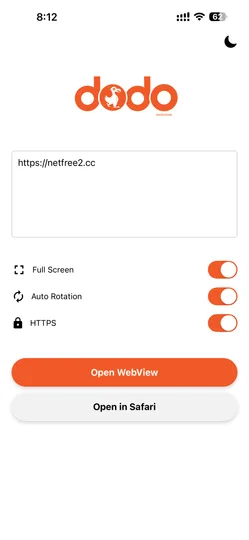
Launch the DODO Webview app from your home screen. You'll see a clean orange screen with a URL input box and three toggles. Paste the current NetMirror URL into the box — we publish the latest working URL on our homepage (the URL rotates every 4-6 weeks because of ISP blocks).
Turn ON all three toggles: Full Screen (hides the Safari address bar for an app-like experience), Auto Rotation (allows landscape playback for movies) and HTTPS (forces secure connection). Then tap the orange Open WebView button.
Tap through the daily support ad
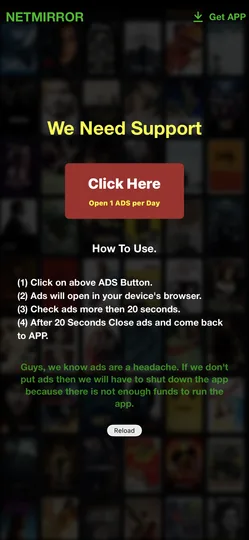
On first launch each day you'll see the "We Need Support" screen with a "Click Here · Open 1 ADS per Day" button. This is the single short ad that funds NetMirror (no banner ads, no mid-roll interruptions). The instructions on-screen tell you exactly what to do.
Tap Click Here → the ad opens in your device's Safari browser → wait 20 seconds → close the Safari tab → return to DODO Webview. The "Reload" button on the support screen will then take you straight into the NetMirror streaming app for the next 24 hours.
You're in — start streaming
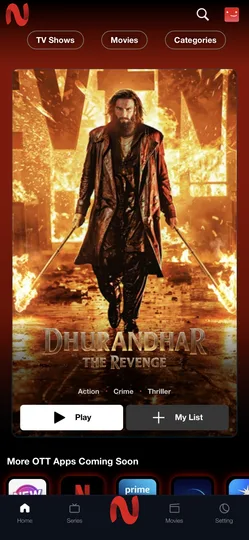
After the 20-second ad, you land in the actual NetMirror app. The home screen shows a featured banner (here: Dhurandhar — The Revenge), top tabs for TV Shows, Movies and Categories, plus a bottom nav bar with Home, Series, Movies and Setting.
Tap any title to open its detail page with language tabs (English / Hindi / Tamil / Telugu audio), Play and My List buttons. Scroll the home feed to see OTT platform sections — Netflix, Prime Video, Disney+ Hotstar and 50+ more, all in one feed.
You\'re done — NetMirror is running on your iPhone.
Browse the home feed, tap any title and start streaming. Bonus: in the next section we\'ll show how to add a NetMirror icon to your home screen so you can skip DODO entirely on subsequent launches.
First-run setup
On first launch you\'ll be guided through a brief onboarding inside the NetMirror app:
- 1
A one-time language picker — set your default audio and subtitle language. Change later per-title from the player.
- 2
Orientation lock recommendation — iOS users should unlock orientation in Control Center so videos rotate to landscape on Play.
- 3
AirPlay availability check — if you've got an Apple TV on the same Wi-Fi, the AirPlay icon will appear inside the player.
- 4
Picture-in-Picture is enabled by default on iOS 14+ — leave the app and your video keeps playing in a floating window.
After onboarding, you land on the home feed — featured banner up top, OTT platform tabs and content rows below. No signup. Watchlist and Continue Watching are stored locally inside DODO Webview.
Bonus: Add to Home Screen
For one-tap access without going through DODO each time, add NetMirror as a Safari web app on your home screen. The icon will look and feel like a native app:
- 1
Open Safari (not Chrome) on your iPhone or iPad.
- 2
Visit the current NetMirror URL in Safari (same URL you pasted into DODO).
- 3
Tap the Share icon at the bottom of the screen.
- 4
Scroll down in the Share sheet and tap Add to Home Screen.
- 5
Rename to NetMirror and tap Add — the icon appears on your home screen.
Troubleshooting
6 common issues · verified fixesThe six most common iOS install hiccups, each with the actual root cause and the verified fix. Tap any issue to expand.
"This page can't be loaded" or DODO won't open the URL
Either the URL has rotated to a new domain, or the HTTPS toggle is off and the site forces secure connection.
First, make sure all three toggles (Full Screen, Auto Rotation, HTTPS) are ON in DODO. Then check our homepage for the current working URL — it changes every 4-6 weeks due to ISP-level blocks. Paste the fresh URL and tap Open WebView again.
The "We Need Support" ad screen loops back after closing the ad
Safari either didn't fully load the ad, or you closed the tab before the 20-second timer counted down.
Tap Click Here again. Wait until the ad fully loads in Safari and the 20-second timer counts to zero. Close the Safari tab (swipe up from bottom on iPhone X+), reopen DODO and tap Reload. The streaming feed should load.
Video player shows a black screen or won't play
Either Auto Rotation is OFF in DODO, or your device is in Low Power Mode which throttles video decoding.
Quit DODO completely (swipe up to app switcher → swipe DODO away). Turn off Low Power Mode (Settings → Battery → Low Power Mode → off). Reopen DODO with Auto Rotation ON and try the video again.
AirPlay icon doesn't appear in the player
AirPlay requires Auto Rotation enabled in DODO and your Apple TV / AirPlay receiver to be on the same Wi-Fi network.
Enable Auto Rotation in DODO. Open Control Center on your iPhone/iPad → tap Screen Mirroring → confirm the target device appears. Restart the video — the AirPlay icon will now appear in the bottom-right of the player.
DODO Webview app keeps crashing on launch
iOS sometimes corrupts app caches after major iOS updates. The app needs a clean reinstall.
Long-press the DODO icon → Remove App → Delete App. Reopen App Store → search "DODO Webview" → reinstall. Your DODO URL settings will need to be re-entered (paste the NetMirror URL again).
Subtitles or audio language won't switch
iOS Safari (which DODO uses internally) sometimes caches old player state from a previous title.
In the player, tap the gear icon → Reset Player. If that doesn't work, exit to the home screen, force-quit DODO and reopen — the audio/subtitle menus will refresh.
iOS install FAQ
Eight questions iPhone and iPad users ask most often about the DODO Webview setup.
Why do I need DODO Webview instead of a native NetMirror app?
Does this require jailbreaking my iPhone?
Will Apple block this in a future iOS update?
Is DODO Webview safe? Why does it have a 1.3-star rating?
Can I use this on iPad?
Why is there an ad every 24 hours?
Can I AirPlay to my Apple TV?
Why does the URL keep changing?
Ready to stream on iPhone?
Open the App Store, search "DODO Webview", install it free, paste the NetMirror URL — three minutes to your first movie. No jailbreak, no card, no signup.